ชั้น 29 ออฟฟิศเศส แอท เซ็นทรัลเวิลด์

999/9 พระราม 1 กรุงเทพฯ 10330

บริการตลอด 24 ชั่วโมง

ทุกวัน ไม่เว้นวันหยุด

0-2107-3466

โทรเลยดิจะรออะไร

Home Plesk Plesk Admin Level วิธีบล็อก IP Address ไม่ให้เข้าสู่ระบบ Plesk Admin

วิธีบล็อก IP Address ไม่ให้เข้าสู่ระบบ Plesk Admin

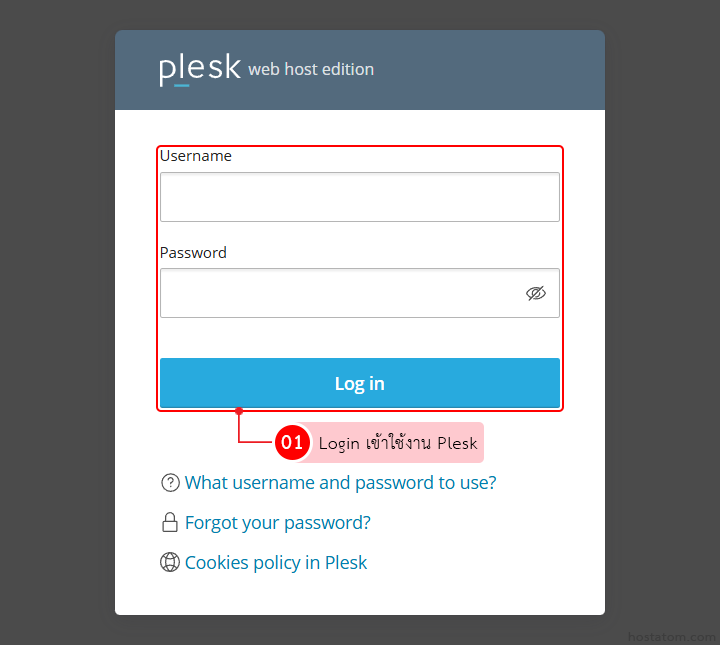
บัญชีผู้ดูแลระบบ (Admin) มีสิทธิ์เข้าถึงและควบคุมการตั้งค่าทั้งหมดใน Plesk หากบัญชีถูกเข้าถึงโดยไม่ได้รับอนุญาต อาจส่งผลกระทบในวงกว้าง การจำกัดไม่ให้ IP ที่ไม่พึงประสงค์ Login เข้าใช้งานจึงเป็นสิ่งสำคัญ โดยสามารถตั้งค่าผ่านฟีเจอร์ IP Access Restriction Management ได้ตามขั้นตอนต่อไปนี้
Plesk login dialog with Username and Password fields, blue Log in button, and help links below (What username…, Forgot password?, Cookies policy).

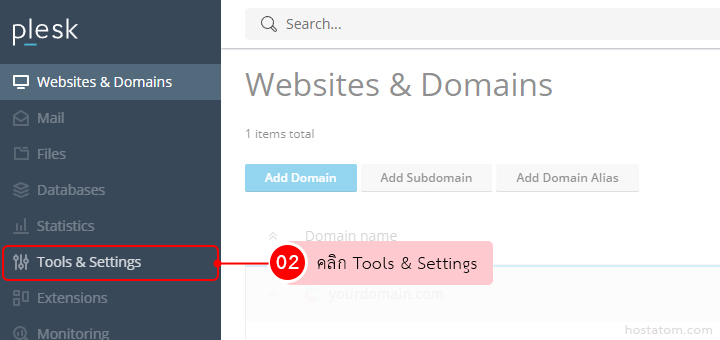
ที่เมนูด้านซ้าย คลิก Tools & Settings

Plesk control panel: left sidebar with Tools & Settings highlighted and Websites & Domains overview in the main area.

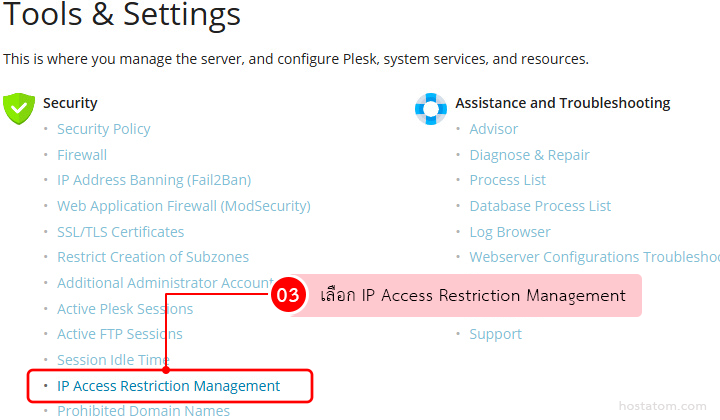
ในหัวข้อ Security คลิก IP Access Restriction Management

Tools & Settings page with Security and Troubleshooting sections; the 'IP Access Restriction Management' link is highlighted in the Security list.

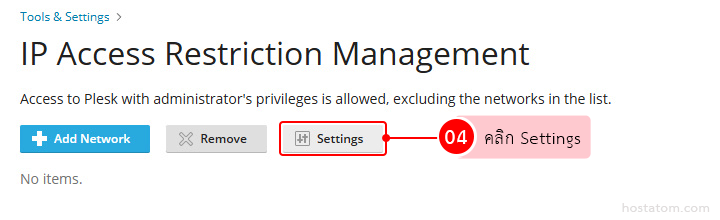
คลิก Settings

IP Access Restriction Management screen with Add Network, Remove, and Settings buttons; no networks listed yet.

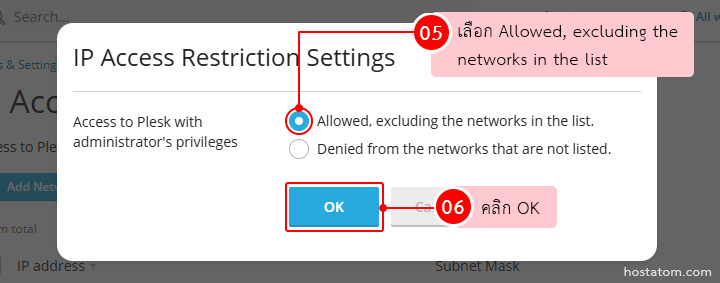
เลือก Allowed, excluding the networks in the list. คลิก OK
โหมดนี้เป็นการบล็อก IP Address ที่กำหนดไว้ในรายการ ไม่ให้ Login เข้า Plesk ด้วยสิทธิ์ผู้ดูแลระบบ

Dialog: IP Access Restrictions Settings with 'Allowed, excluding the networks in the list' selected and an OK button highlighted.

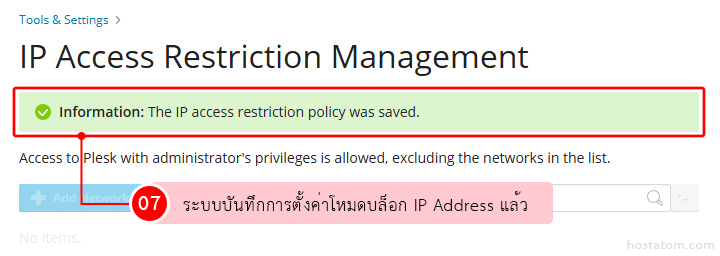
ระบบแจ้งว่าบันทึกนโยบายจำกัดการเข้าถึง IP Address แล้ว

IP Access Restriction Management page with a green success banner reading 'Information: The IP access restriction policy was saved.' A blue 'Add Network' button and a pink badge labeled 07 appear, plus Thai text about saved settings.

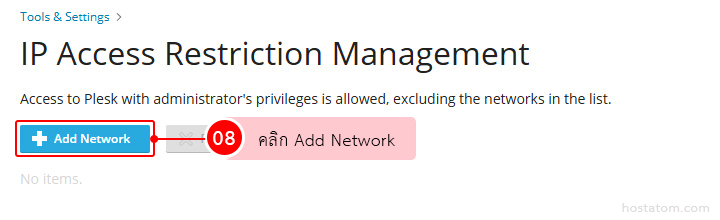
คลิก Add Network

IP Access Restriction Management page showing a highlighted blue Add Network button (with a plus icon) and a red 08 badge.

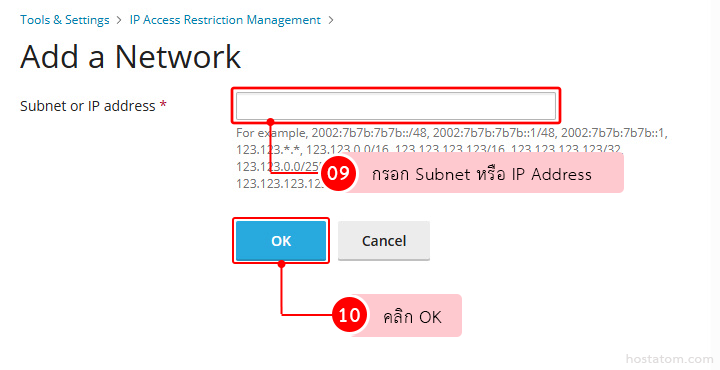
กรอก IP Address ที่ต้องการบล็อกในช่อง Subnet or IP address จากนั้นคลิก OK

Form to add a network: Subnet or IP Address input highlighted, help text with examples, and blue OK and gray Cancel buttons.
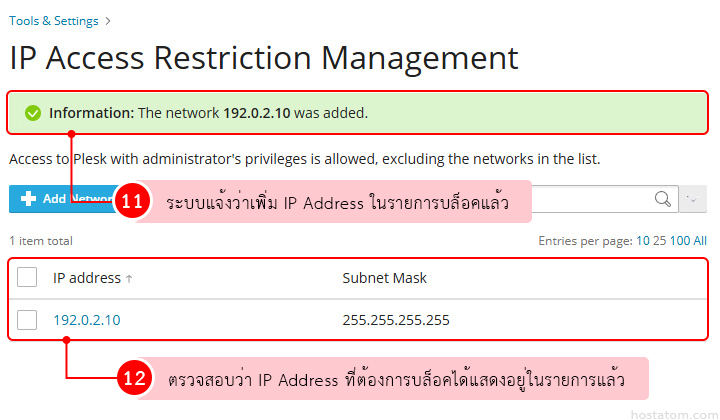
ระบบจะแสดงแถบแจ้งเตือน และแสดงรายการ IP Address ที่ถูกบล็อกในตารางด้านล่าง โดย IP Address ที่อยู่ในรายการนี้จะไม่สามารถ Login เข้า Plesk ด้วยสิทธิ์ผู้ดูแลระบบได้
IP Access Restriction Management page with a green notice that 192.0.2.10 was added; table shows 192.0.2.10 and subnet 255.255.255.255.