ชั้น 29 ออฟฟิศเศส แอท เซ็นทรัลเวิลด์

999/9 พระราม 1 กรุงเทพฯ 10330

บริการตลอด 24 ชั่วโมง

ทุกวัน ไม่เว้นวันหยุด

0-2107-3466

โทรเลยดิจะรออะไร

knowledge base › Roundcube › วิธีตั้งค่า Font เริ่มต้นสำหรับการส่งอีเมลใน Roundcube Webmail

วิธีตั้งค่า Font เริ่มต้นสำหรับการส่งอีเมลใน Roundcube Webmail

Roundcube สามารถกำหนด Font และขนาดตัวอักษรเริ่มต้นสำหรับการเขียนอีเมลแบบ HTML ได้ ช่วยให้ไม่ต้องเลือก Font และขนาดตัวอักษรใหม่ทุกครั้งที่เขียนอีเมล โดยสามารถตั้งค่าได้ตามขั้นตอนต่อไปนี้
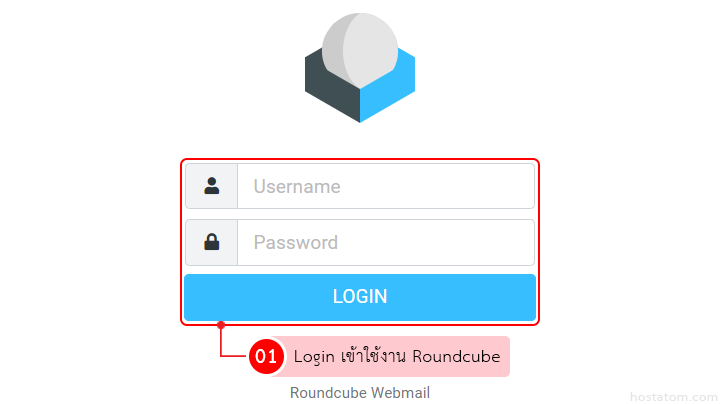
Roundcube Webmail login form with Username and Password fields and a blue 'Login' button, logo above the form.

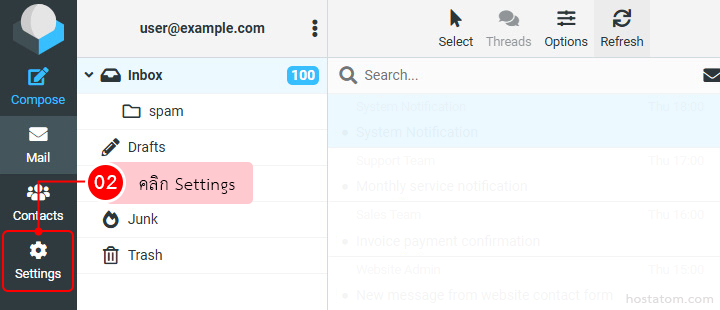
คลิก Settings

Webmail UI: left sidebar with Mail, Contacts, Settings; Settings highlighted with a pink label saying 'คลิก Settings'.
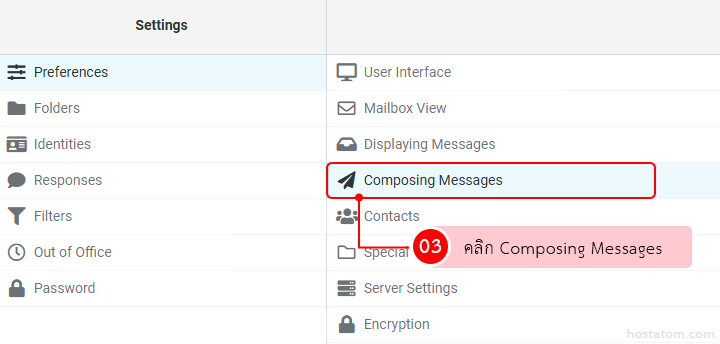
คลิก Composing Messages ในแถบ Preferences
Settings menu with left navigation (Preferences, Folders, Identities, Responses, Filters, Out of Office, Password) and right panel highlighting 'Composing Messages' with a pink '03' tip.

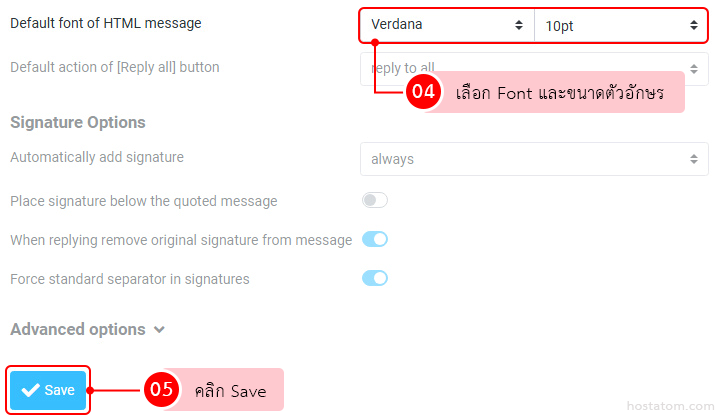
ที่หัวข้อ Default font of HTML message เลือก Font และขนาดตัวอักษรที่ต้องการ แล้วคลิก Save เพื่อบันทึกการตั้งค่า

UI settings panel for email signature: Verdana font, 10pt selected; Thai tooltip reads 'เลือก Font และขนาดตัวอักษร'; blue Save button highlighted at bottom left.
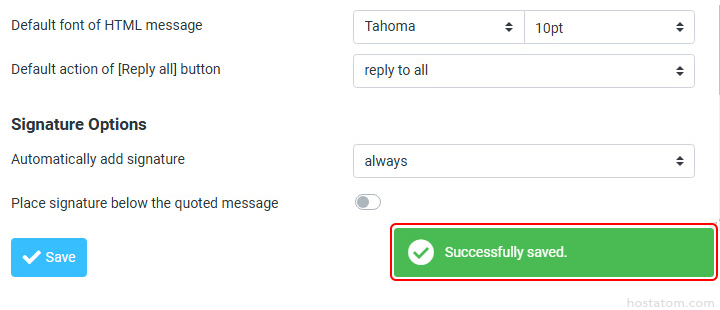
ระบบจะแสดงข้อความแจ้งว่าบันทึกการตั้งค่าสำเร็จ
Email signature settings panel with 'Signature Options' and a green 'Successfully saved' banner.

หลังจากบันทึกแล้ว Font และขนาดตัวอักษรที่เลือกจะถูกใช้เป็นค่าเริ่มต้นสำหรับการเขียนอีเมลแบบ HTML
หากคุณกำลังมองหาเว็บโฮสติ้งที่ใช้งานง่ายและปลอดภัย และรองรับการใช้งานอีเมลภายใต้ชื่อโดเมนของคุณ
ดูรายละเอียดแพ็กเกจ Web Hosting ได้ที่นี่