ชั้น 29 ออฟฟิศเศส แอท เซ็นทรัลเวิลด์

999/9 พระราม 1 กรุงเทพฯ 10330

บริการตลอด 24 ชั่วโมง

ทุกวัน ไม่เว้นวันหยุด

0-2107-3466

โทรเลยดิจะรออะไร

Home DirectAdmin DirectAdmin User Level วิธีแก้ไขสิทธิ์เข้าถึงฐานข้อมูลของผู้ใช้ฐานข้อมูลใน DirectAdmin

วิธีแก้ไขสิทธิ์เข้าถึงฐานข้อมูลของผู้ใช้ฐานข้อมูลใน DirectAdmin

หลังจากเพิ่มผู้ใช้ฐานข้อมูลให้เข้าถึงฐานข้อมูลจาก DirectAdmin เรียบร้อยแล้ว หากไม่ได้ต้องการให้ผู้ใช้ทุกคนมีสิทธิ์เข้าถึงฐานข้อมูลทั้งหมดตามค่าเริ่มต้นเดิมของระบบ เช่น ผู้ใช้บางรายสามารถอ่านหรือเพิ่มข้อมูลได้เท่านั้น สามารถปรับแก้สิทธิ์ของผู้ใช้เหล่านั้นได้ตามขั้นตอนต่อไปนี้

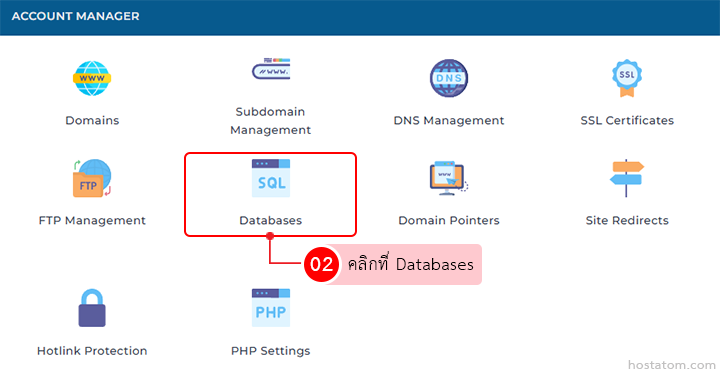
คลิกที่ Databases ในหมวด ACCOUNT MANAGER

Account Manager dashboard; Databases tile highlighted with red outline among domain management options.

กรณีที่แก้ไขจากหน้าจัดการฐานข้อมูล

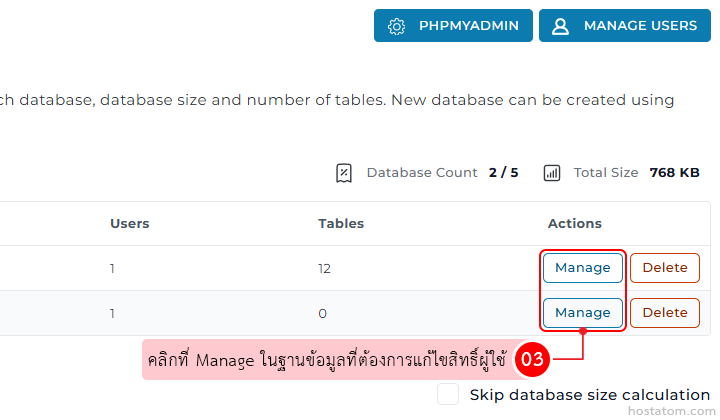
คลิกที่ Manage ในฐานข้อมูลที่ต้องการแก้ไขสิทธิ์ผู้ใช้

PHPMyAdmin user list with an Actions column showing blue Manage and orange Delete buttons; pink Thai tooltip instructs clicking Manage to edit the database; below is a Skip database size calculation option.

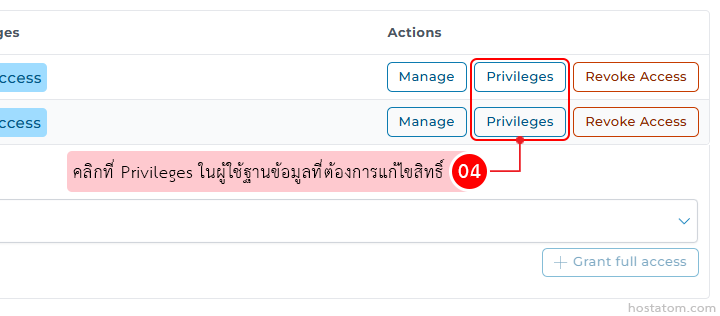
ในส่วน User Access ให้คลิกที่ Privileges ในผู้ใช้ฐานข้อมูลที่ต้องการแก้ไขสิทธิ์

Table of user accounts with action buttons (Manage, Privileges, Revoke Access); Privileges button highlighted by a callout.

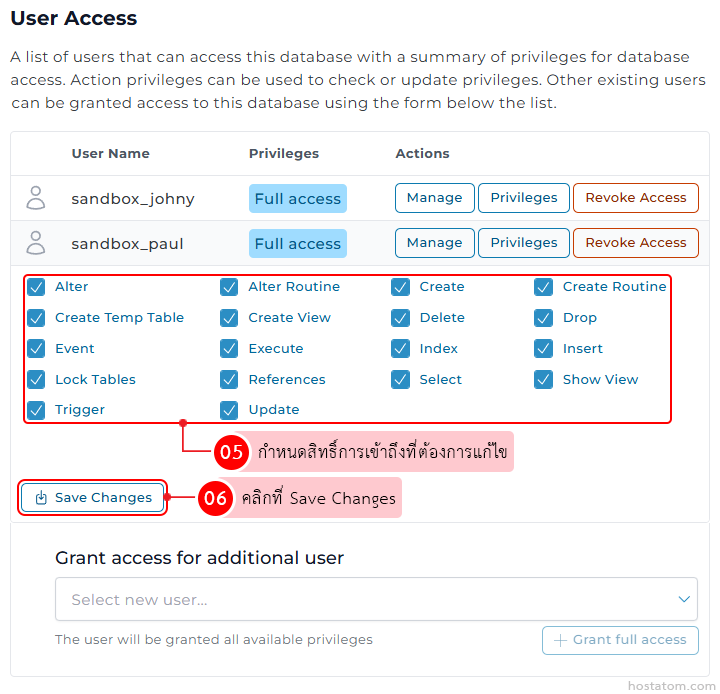
กำหนดสิทธิ์การเข้าถึงที่ต้องการแก้ไข

  • Select อ่านข้อมูลภายในตาราง
  • Insert เพิ่มข้อมูลใหม่
  • Update แก้ไขข้อมูล
  • Delete ลบข้อมูล
  • Create สร้างตารางหรือออบเจ็กต์ใหม่
  • Drop ลบตารางหรือฐานข้อมูล
  • Alter แก้ไขโครงสร้างตาราง
  • Index สร้างและจัดการ Index
  • References สร้าง Foreign Key
  • Create View สร้าง View
  • Show View ดูคำสั่งสร้าง View
  • Create Routine  สร้าง Stored Procedure และ Function
  • Alter Routine แก้ไข Stored Procedure และ Function
  • Execute เรียกใช้งาน Stored Procedure และ Function
  • Trigger สร้างและจัดการ Trigger
  • Event สร้างและจัดการ Event Scheduler
  • Create Temp Table สร้าง Temporary Table
  • Lock Tables ล็อกตารางระหว่างการทำงาน

เมื่อกำหนดเรียบร้อยแล้ว ให้คลิกที่ Save Changes

User Access settings: two sandbox users have Full access, with a grid of privilege checkboxes (Alter, Create, Delete, Insert, Show View, etc.) and a highlighted Save Changes button; Thai instruction note appears.

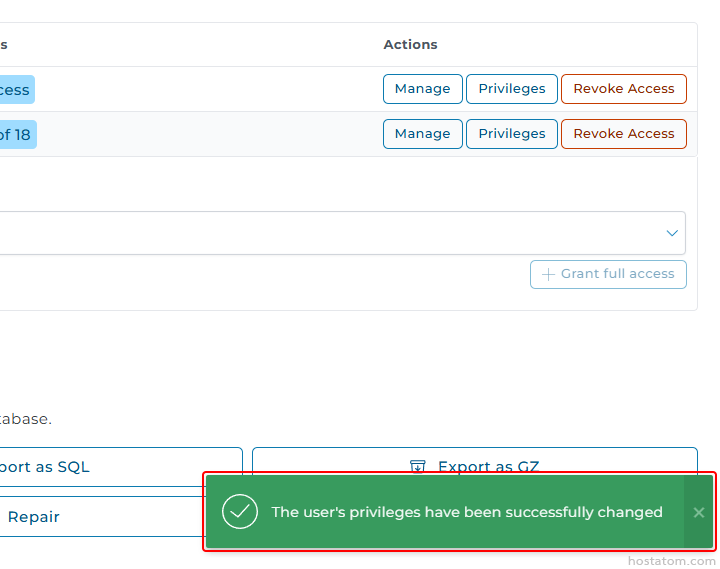
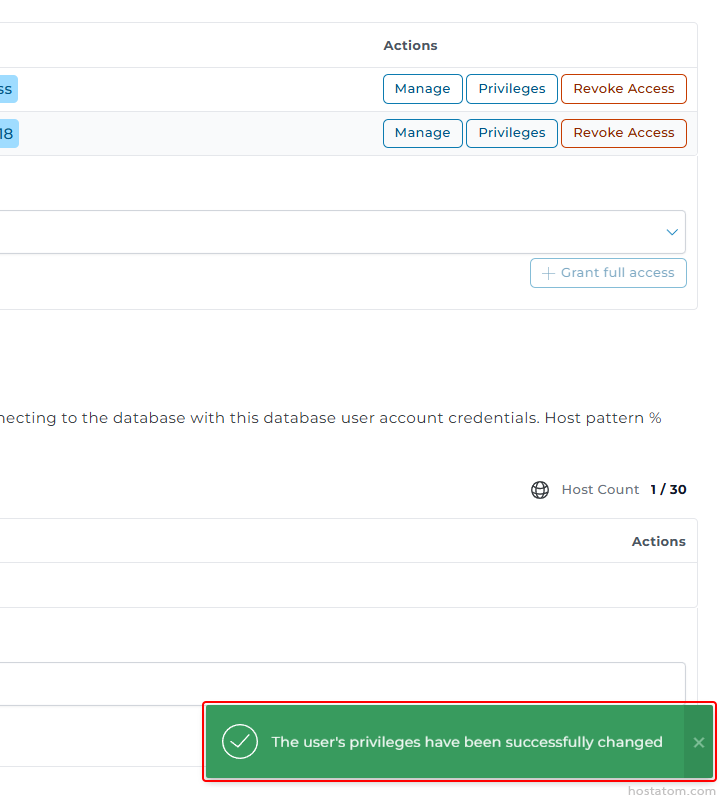
ระบบจะแจ้งว่าได้เปลี่ยนสิทธิ์การเข้าถึงฐานข้อมูลของผู้ใช้ฐานข้อมูลดังกล่าวแล้ว
Admin panel with privilege action buttons (Manage, Privileges, Revoke) and a green success toast reading 'The user's privileges have been successfully changed'.

กรณีที่แก้ไขจากหน้าจัดการผู้ใช้งาน

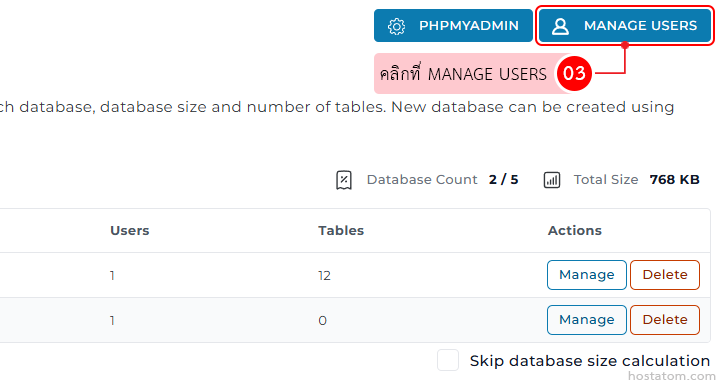
คลิกที่ MANAGE USERS

Admin panel for managing a database: top navigation showing PHPMyAdmin and a highlighted 'Manage Users' button; below is a table with columns Users, Tables, and Actions, with each row containing blue 'Manage' and orange 'Delete' buttons.

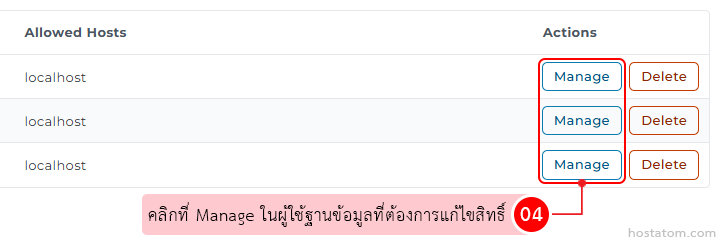
คลิกที่ Manage ในผู้ใช้ฐานข้อมูลที่ต้องการเพิ่มสิทธิ์

Table of allowed hosts with three localhost rows; each row has Manage and Delete actions, with a pink tip pointing to '04' that suggests clicking Manage to edit permissions.

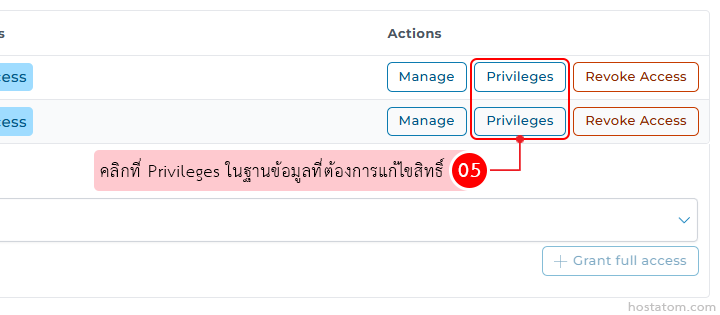
คลิกที่ Privileges ในฐานข้อมูลที่ต้องการแก้ไขสิทธิ์

UI of an admin panel showing two rows with action buttons (Manage, Privileges, Revoke Access); a pink tooltip points to the Privileges button with Thai text about editing permissions.

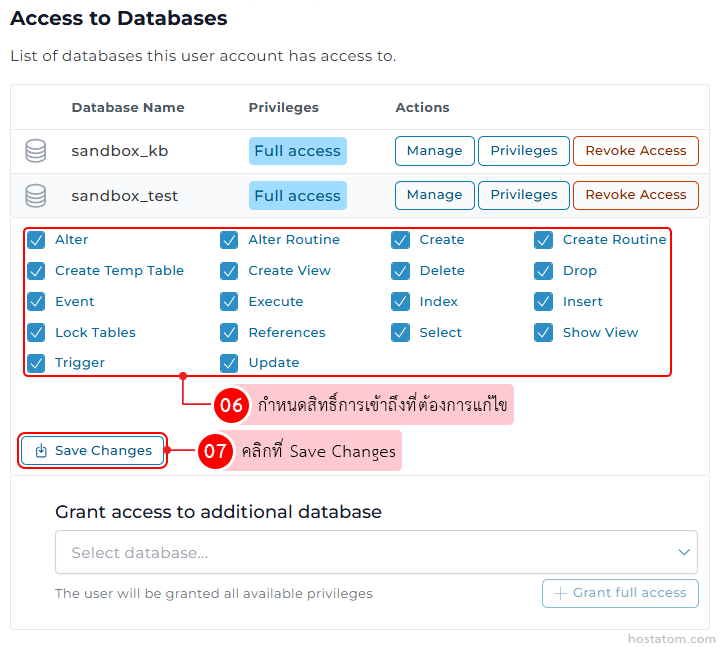
กำหนดสิทธิ์การเข้าถึงที่ต้องการแก้ไข

  • Select อ่านข้อมูลภายในตาราง
  • Insert เพิ่มข้อมูลใหม่
  • Update แก้ไขข้อมูล
  • Delete ลบข้อมูล
  • Create สร้างตารางหรือออบเจ็กต์ใหม่
  • Drop ลบตารางหรือฐานข้อมูล
  • Alter แก้ไขโครงสร้างตาราง
  • Index สร้างและจัดการ Index
  • References สร้าง Foreign Key
  • Create View สร้าง View
  • Show View ดูคำสั่งสร้าง View
  • Create Routine  สร้าง Stored Procedure และ Function
  • Alter Routine แก้ไข Stored Procedure และ Function
  • Execute เรียกใช้งาน Stored Procedure และ Function
  • Trigger สร้างและจัดการ Trigger
  • Event สร้างและจัดการ Event Scheduler
  • Create Temp Table สร้าง Temporary Table
  • Lock Tables ล็อกตารางระหว่างการทำงาน

เมื่อกำหนดเรียบร้อยแล้ว ให้คลิกที่ Save Changes

Admin panel showing database access settings: two databases (sandbox_kb and sandbox_test) with actions (Manage, Privileges, Revoke Access) and Full access; below is a grid of checked privileges (Alter, Create, Drop, Select, etc.) and a Save Changes button, plus a section to grant access to additional databases.

ระบบจะแจ้งว่าได้เปลี่ยนสิทธิ์การเข้าถึงฐานข้อมูลของผู้ใช้ฐานข้อมูลดังกล่าวแล้ว
Green success toast: The user's privileges have been successfully changed, with a checkmark icon.

หากคุณกำลังมองหาเว็บโฮสติ้งที่ใช้งานง่ายและปลอดภัย สามารถดูรายละเอียดแพ็กเกจ Web Hosting ของเราได้ที่
👉 https://www.hostatom.com/web-hosting