ชั้น 29 ออฟฟิศเศส แอท เซ็นทรัลเวิลด์

999/9 พระราม 1 กรุงเทพฯ 10330

บริการตลอด 24 ชั่วโมง

ทุกวัน ไม่เว้นวันหยุด

0-2107-3466

โทรเลยดิจะรออะไร

Home Plesk User Level วิธีตั้งค่าการรับเมลที่ส่งมายังผู้ใช้ที่ไม่มีอยู่จริงใน Plesk

วิธีตั้งค่าการรับเมลที่ส่งมายังผู้ใช้ที่ไม่มีอยู่จริงใน Plesk

Set up receiving Emails non-existent Plesk

สำหรับใครที่ใช้งานอีเมลบน Plesk อยู่ อาจเคยเจอปัญหาคนส่งอีเมลผิด หรือผู้ส่งมีการกดส่งอีเมลไปยังผู้ใช้ที่ไม่มีอยู่จริงในโดเมนนั้น ๆ

จริง ๆ แล้ว Plesk สามารถตั้งค่าการรับเมลที่ส่งผิดชื่อเหล่านี้ได้ โดยสามารถทำได้ 2 วิธีตามขั้นตอนต่อไปนี้

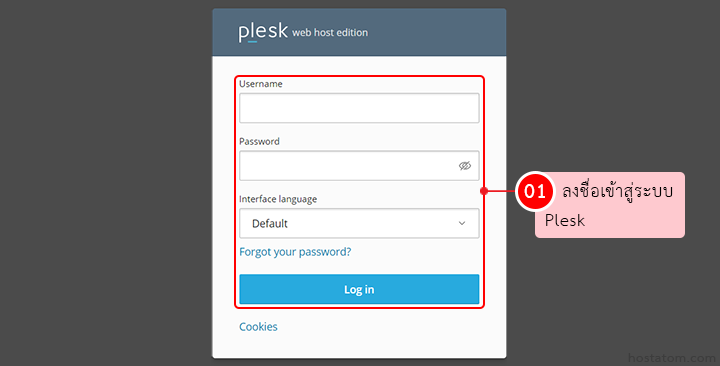
Plesk login modal with Username and Password fields, language dropdown set to Default, and a blue Log in button on a white panel.

วิธีที่ 1

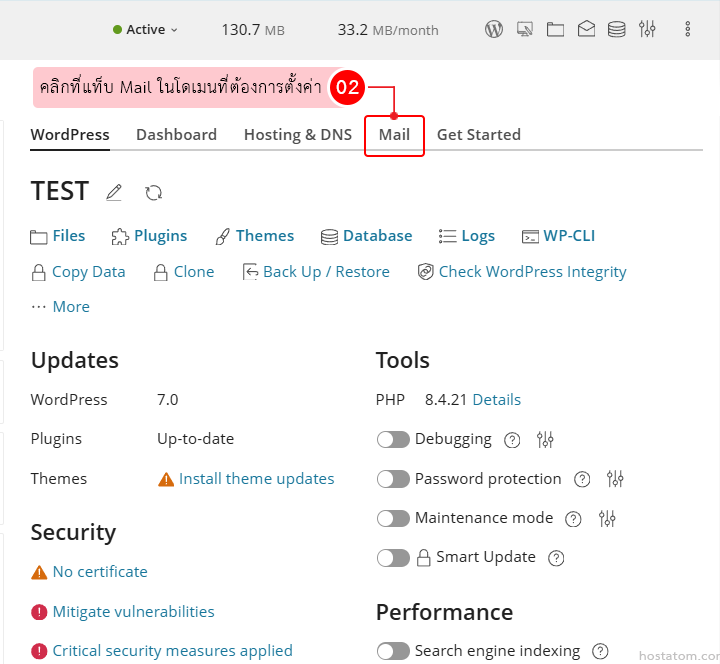
คลิกที่แท็บ Mail ในโดเมนที่ต้องการตั้งค่า

WordPress admin dashboard with the Mail tab highlighted; shows sections Updates, Security, Tools, and Performance beneath.

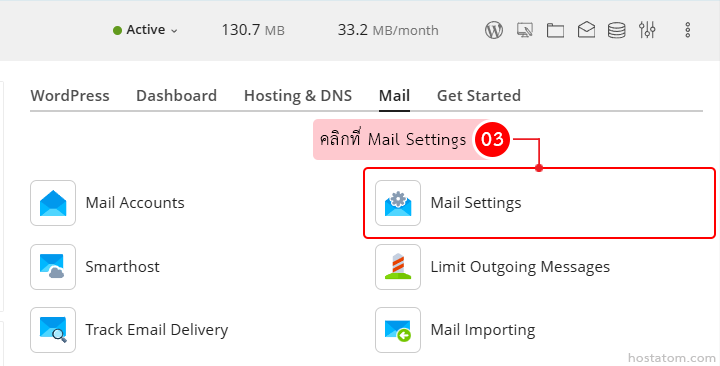
คลิกที่ Mail Settings

Admin dashboard: Mail tab with Mail Settings highlighted (gear icon) in a red outline, indicating where to click for mail configuration.

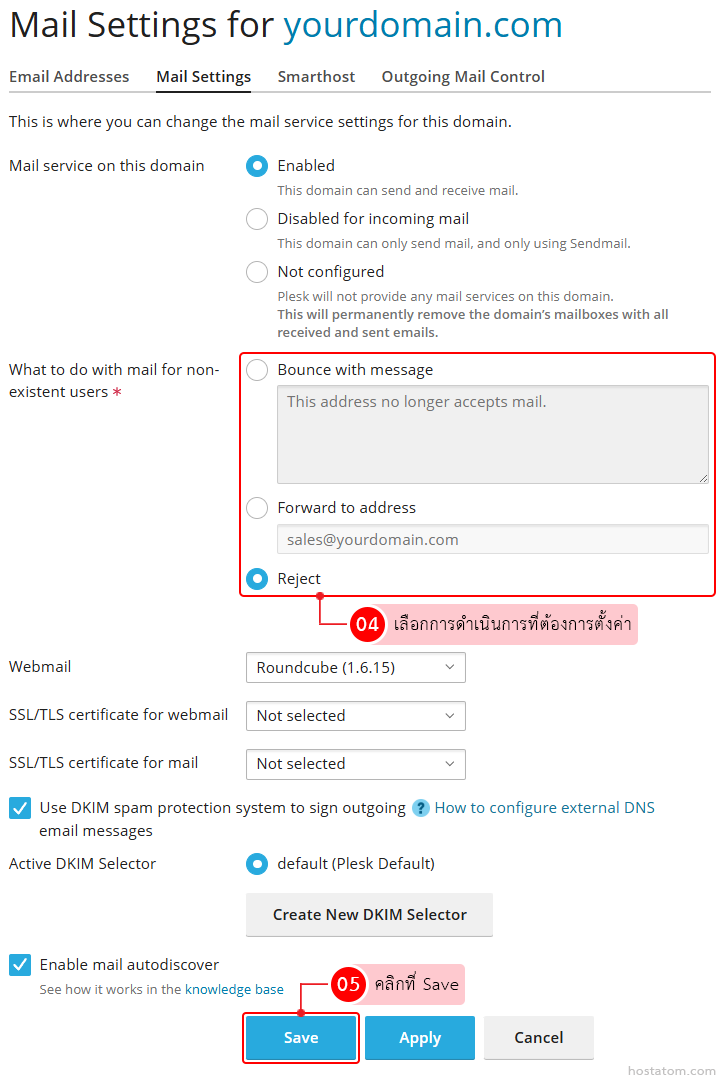
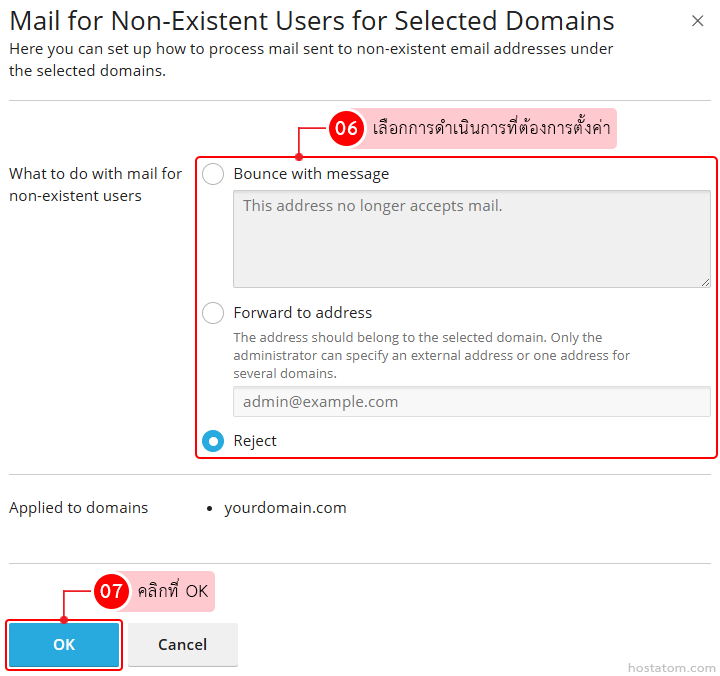
เลือกการดำเนินการที่ต้องการตั้งค่าในหัวข้อ What to do with mail for non-existent users

  • Bounce with message ตีกลับเมลดังกล่าวพร้อมข้อความที่กำหนด
  • Forward to address ส่งต่อเมลที่ได้ไปยังอีเมลที่เป็นของโดเมนที่เลือก (ซึ่งเฉพาะผู้ดูแลระบบเท่านั้นที่สามารถระบุอีเมลภายนอกหรือใช้อีเมลเดียวสำหรับหลายโดเมนได้)
  • Reject ปฏิเสธเมลที่ส่งมา (ค่าเริ่มต้น)

โดยในคู่มือนี้ เราจะใช้ตัวเลือก Forward to address พร้อมใส่โดเมนที่ต้องการเพื่อใช้รับเมลที่ถูกส่งมายังผู้ใช้ที่ไม่มีอยู่จริง จากนั้นคลิกที่ Save

Mail settings for yourdomain.com: non-existent user handling with 'Reject' selected and a message box; Save and Apply available above the page controls.

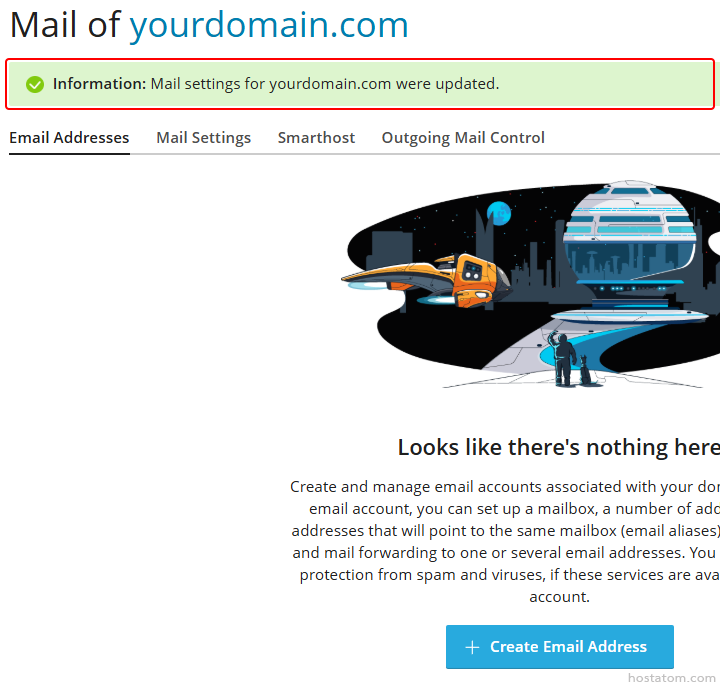
ระบบจะแจ้งว่าได้อัปเดตการตั้งค่าเมลของโดเมนดังกล่าวแล้ว

Mail dashboard for yourdomain.com showing an empty mailbox state with a space-themed illustration, the message "Looks like there's nothing here", and a blue "+ Create Email Address" button.

วิธีที่ 2

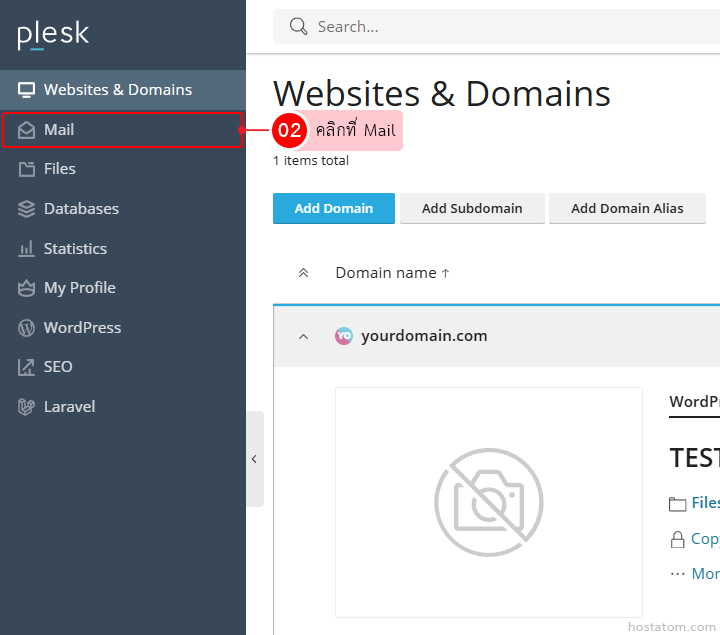
คลิกที่ Mail

Plesk dashboard: left navigation with Mail item highlighted; Websites & Domains page listing yourdomain.com in the main panel.

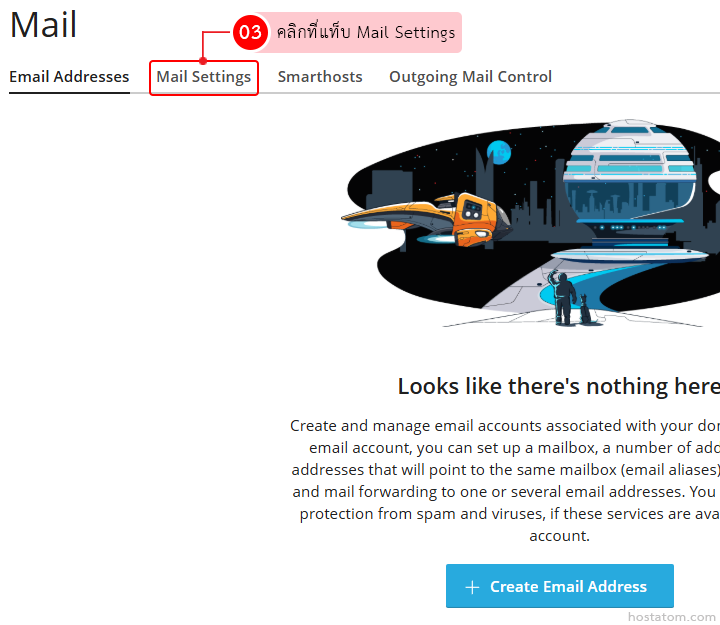
คลิกที่แท็บ Mail Settings

Mail settings page with tabs (Email Addresses, Mail Settings, Smarthosts, Outgoing Mail Control); space-themed illustration on the right; message says there's nothing here and a blue Create Email Address button.

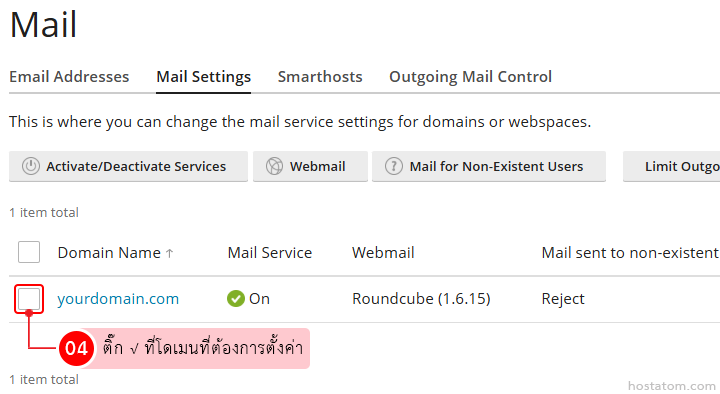
ติ๊ก √ ที่โดเมนที่ต้องการตั้งค่า

Mail settings page: domain yourdomain.com with Mail Service On, Webmail Roundcube, and rejection of mail to non-existent users; action buttons above.

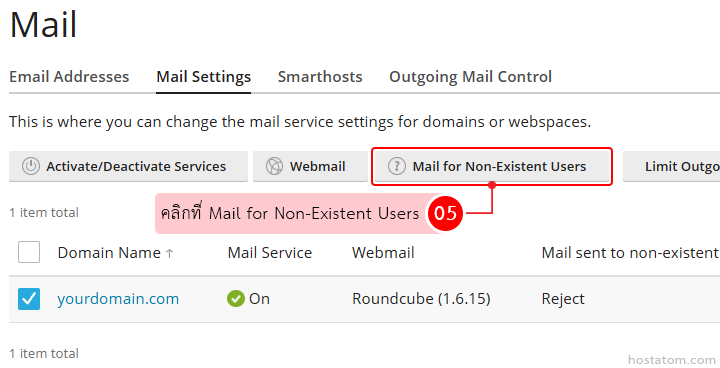
คลิกที่ Mail for Non-Existent Users

Mail settings page with the 'Mail for Non-Existent Users' button highlighted and a domain row for yourdomain.com shown below.

ระบบจะแสดงหน้าต่างตั้งค่าการส่งเมลของโดเมนที่เลือกขึ้นมา ให้เลือกการดำเนินการที่ต้องการตั้งค่าในหัวข้อ What to do with mail for non-existent users จากนั้นคลิกที่ OK

  • Bounce with message ตีกลับเมลดังกล่าวพร้อมข้อความที่กำหนด
  • Forward to address ส่งต่อเมลที่ได้ไปยังอีเมลที่เป็นของโดเมนที่เลือก (ซึ่งเฉพาะผู้ดูแลระบบเท่านั้นที่สามารถระบุอีเมลภายนอกหรือใช้อีเมลเดียวสำหรับหลายโดเมนได้)
  • Reject ปฏิเสธเมลที่ส่งมา (ค่าเริ่มต้น)
Dialog for non-existent user mail handling: choose to Bounce with message, Forward to address (admin@example.com), or Reject for domain yourdomain.com; Reject selected; click OK to apply.

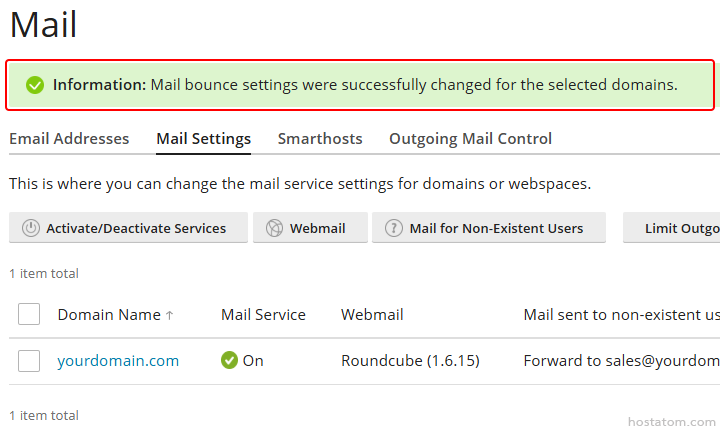
ระบบจะแจ้งว่าได้อัปเดตการตั้งค่าเมลของโดเมนที่เลือกแล้ว
Mail Settings page showing a green success banner about updated bounce settings for the selected domain; domain listed with Mail On and Webmail (Roundcube).

หากคุณกำลังมองหาเว็บโฮสติ้งที่ใช้งานง่ายและปลอดภัย สามารถดูรายละเอียดแพ็กเกจ Web Hosting ของเราได้ที่
👉 https://www.hostatom.com/web-hosting